Keydole on Amazon Fire TV & Firestick
Watch IPTV on Amazon Fire TV Stick using IPTV Smarters Pro. Full sideloading guide — no Amazon Appstore required.
What you need
Before you start, check you have the following.
1. Your device
Fire TV Stick (2nd gen or later), Fire TV Stick 4K, Fire TV Stick 4K Max, Fire TV Cube, or a Fire TV-based smart TV.
2. The app
IPTV Smarters Pro — sideloaded via the Downloader app (free from the Amazon Appstore).
3. Your credentials
The username and password from your Keydole welcome email. Not signed up yet? Pick a plan.
How to set up
Follow these steps in order. Setup takes 3–5 minutes on most devices.
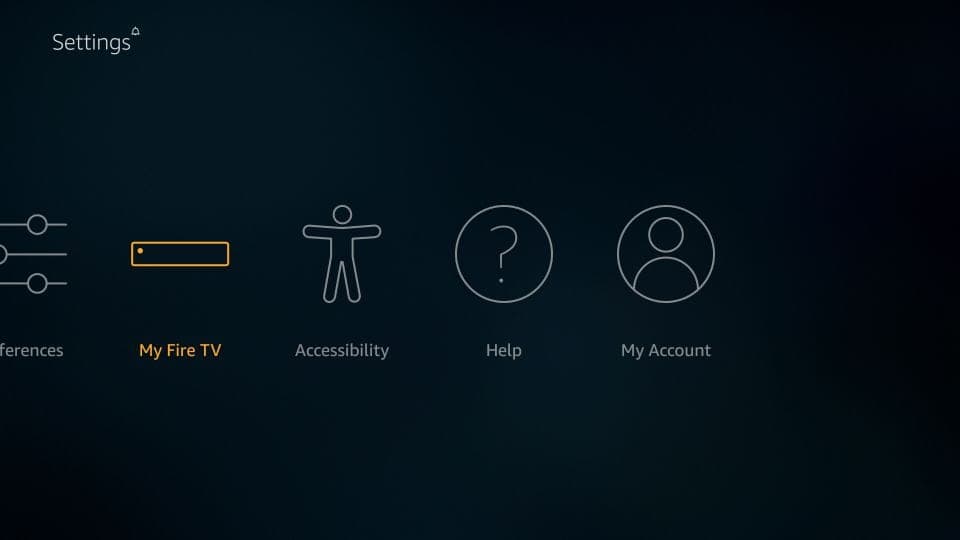
Step 1: Open Settings and select My Fire TV
From the FireStick home screen, open Settings from the top menu bar, then select My Fire TV.
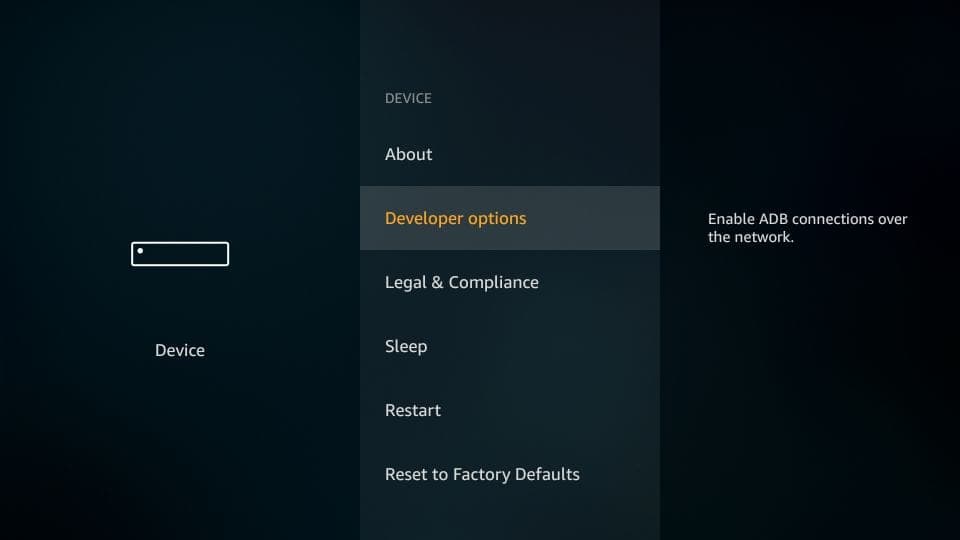
Step 2: Select Developer Options
Inside My Fire TV, choose Developer Options.
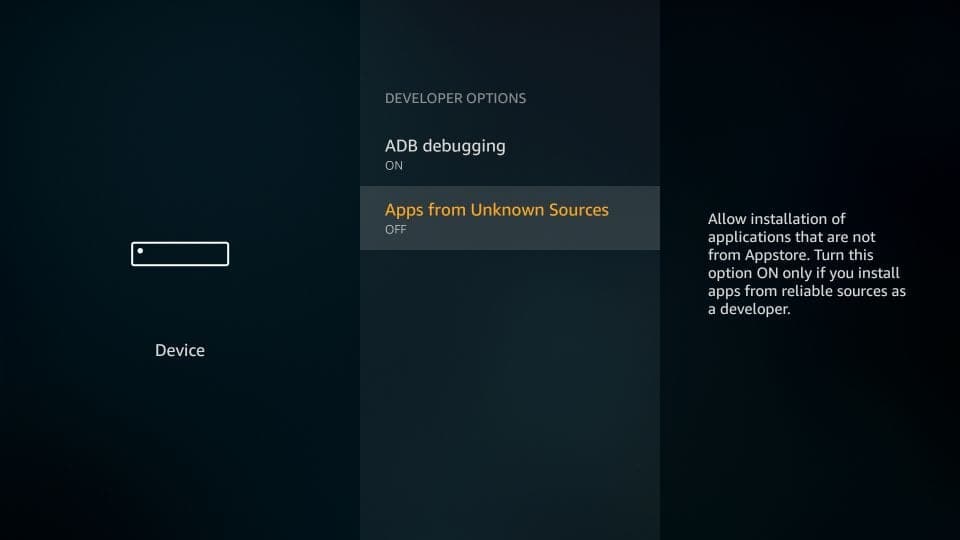
Step 3: Tap Apps from Unknown Sources
You will see Apps from Unknown Sources listed as OFF. Tap it once to enable it.
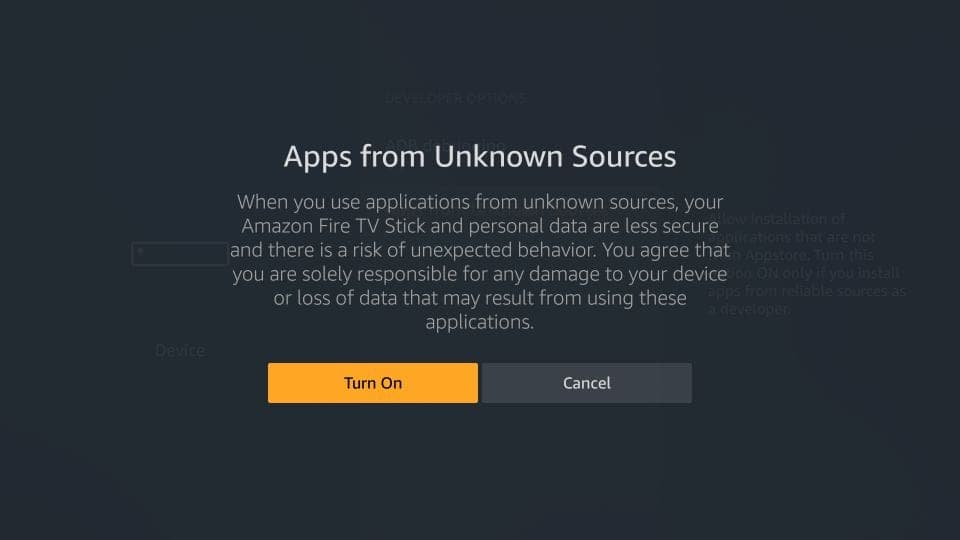
Step 4: Confirm by tapping Turn On
A warning message is displayed. Tap Turn On to allow installation of apps from outside the Amazon Appstore. IPTV Smarters is a trusted app — this step is required because Amazon does not list it.
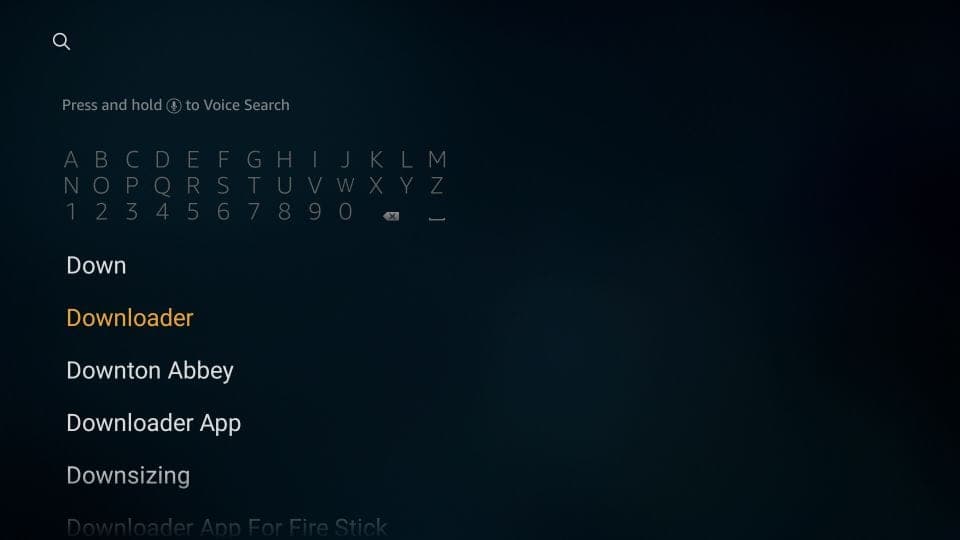
Step 5: Search for and install the Downloader app
Highlight Search on the FireStick home screen, type "Downloader", select it from the results, then download and install it. Downloader lets you sideload APK files — direct browser downloads are not permitted on FireStick.
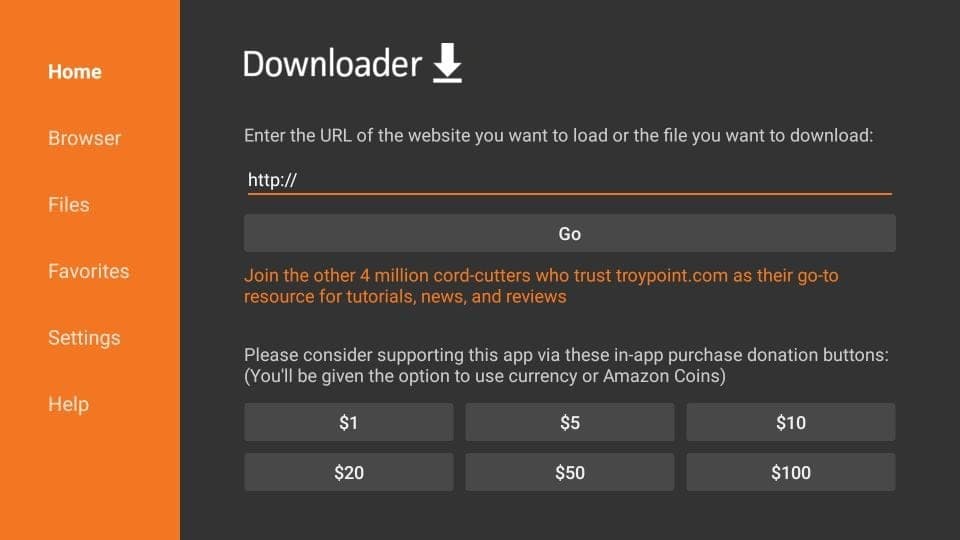
Step 6: Open Downloader and tap the URL box
Open the Downloader app and dismiss any first-run prompts until you reach the home screen. Make sure Home is selected in the left menu, then tap the URL box on the right where it shows "http://".
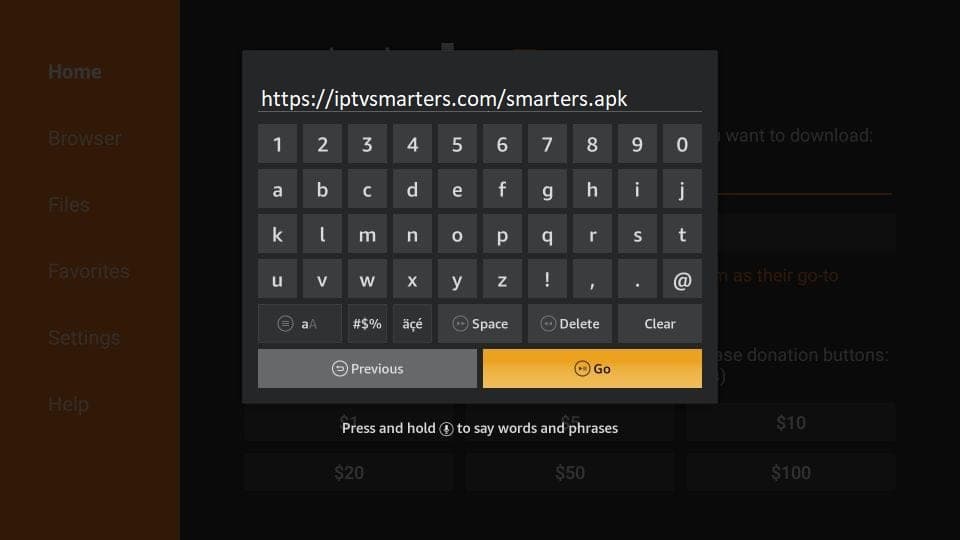
Step 7: Enter the APK URL and tap GO
Type the following address and tap GO: https://iptvsmarters.com/smarters.apk
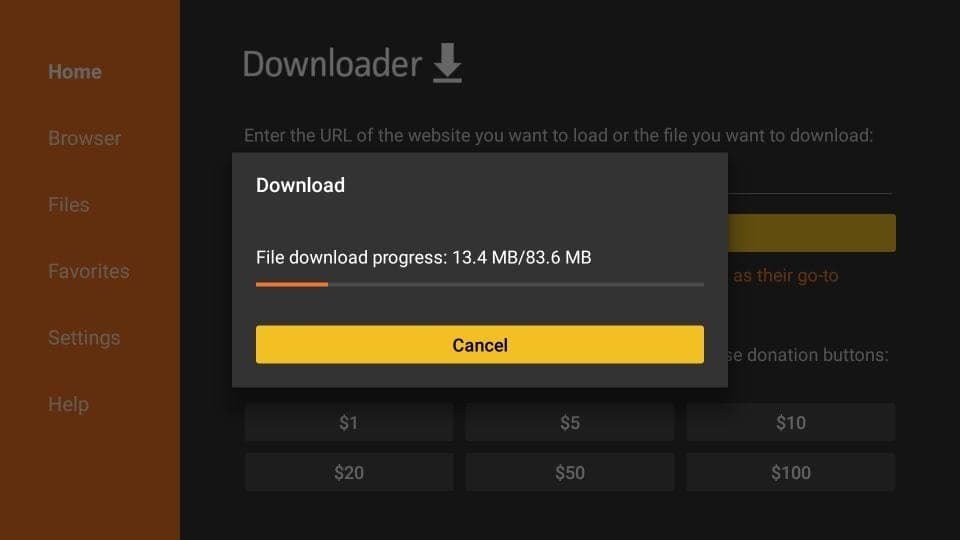
Step 8: Wait for the download to complete
Give it a minute or two while IPTV Smarters downloads onto your FireStick. Download time depends on your connection speed.
Step 9: Tap Install
Once the download finishes, Downloader will automatically run the APK file. When the install prompt appears, tap Install.
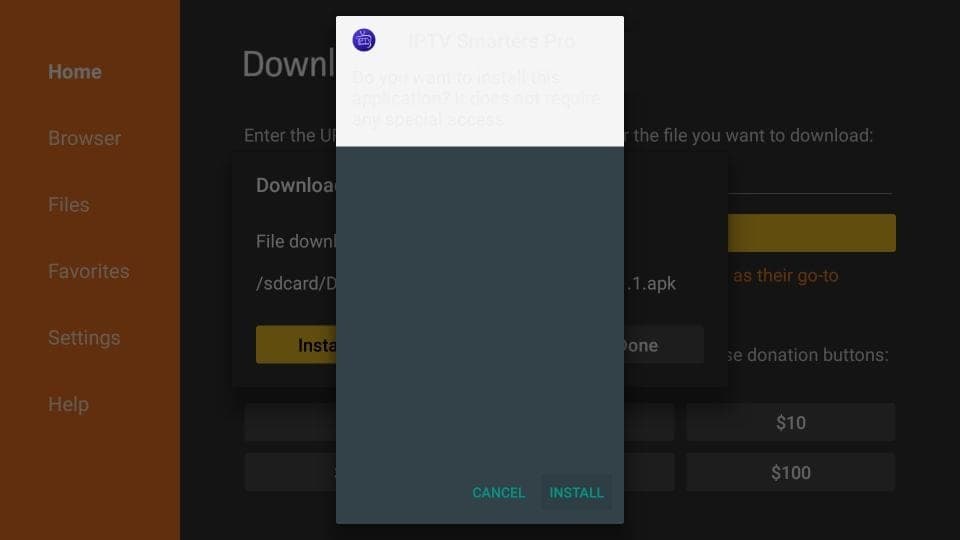
Step 10: Wait for the installation to finish
The installation will take a few seconds. Do not close the Downloader app while it completes.
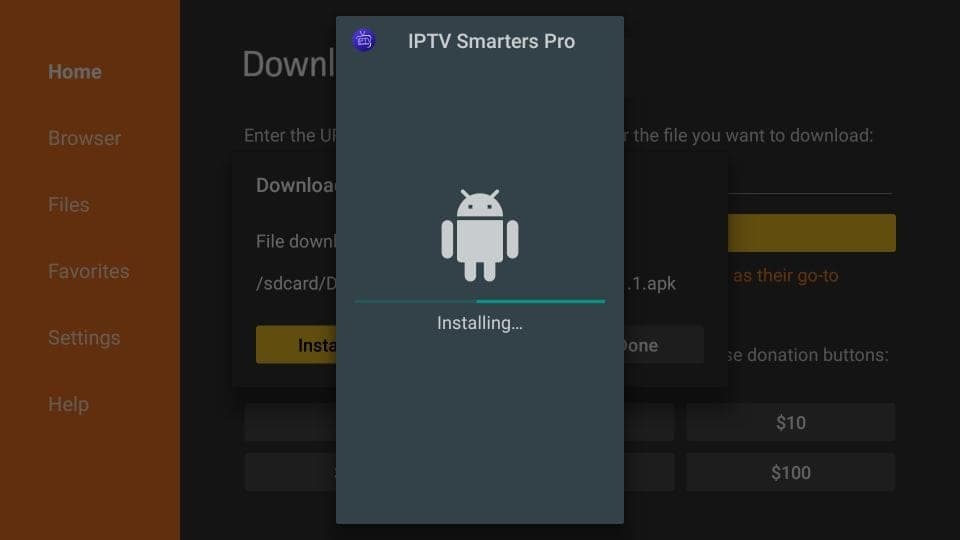
Step 11: Tap DONE
When you see "App installed", tap DONE rather than Open. This returns you to the Downloader screen so you can clean up the APK file.
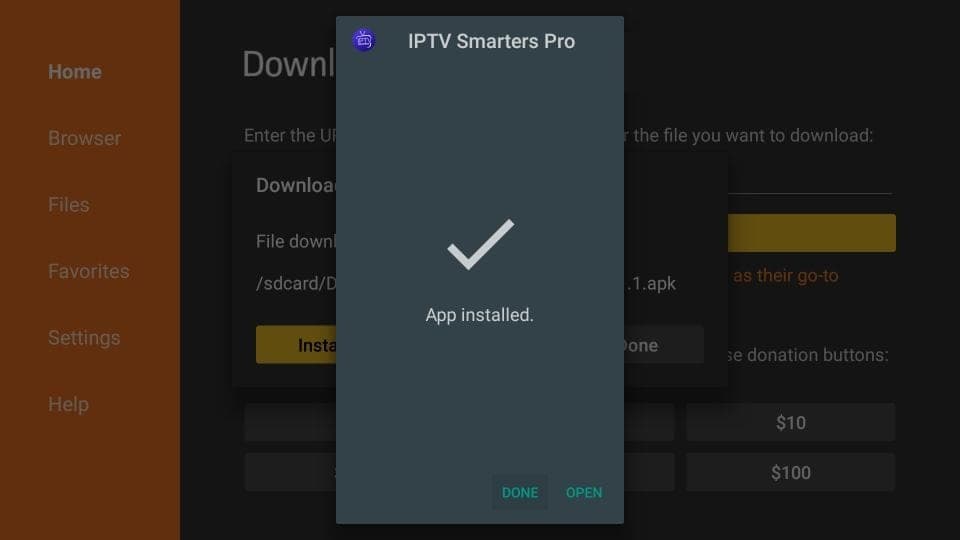
Step 12: Tap Delete to remove the APK
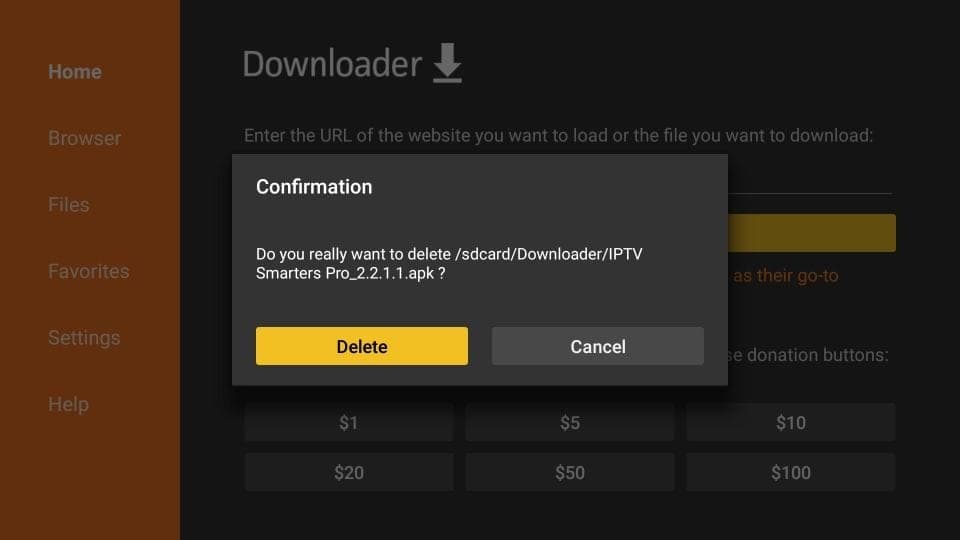
Back in Downloader, tap Delete to remove the APK installer and free up storage space on your FireStick.
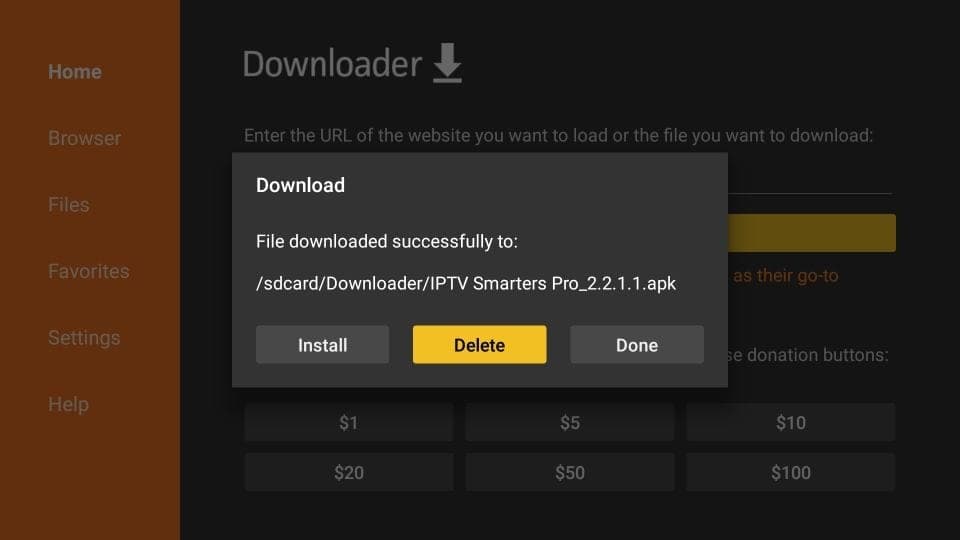
Step 13: Confirm deletion
Tap Delete again on the confirmation dialog. Great — IPTV Smarters Pro is now installed on your FireStick. When you first open it, scroll down through the Terms of Use and tap Accept.
Setup via Xtream Codes API
RecommendedOpen "Add user" and choose Xtream Codes
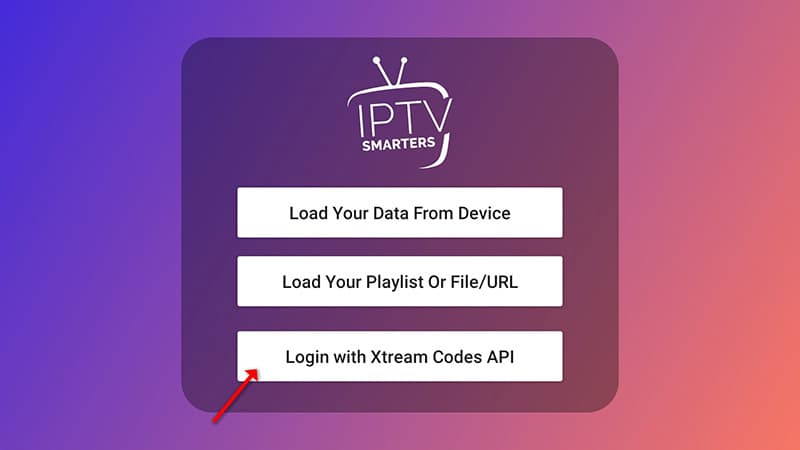
Tap "Add user", then select "Login with Xtream Codes API". We recommend this method because it enables the Catchup feature and loads the EPG automatically — no extra URL needed.
Enter your credentials
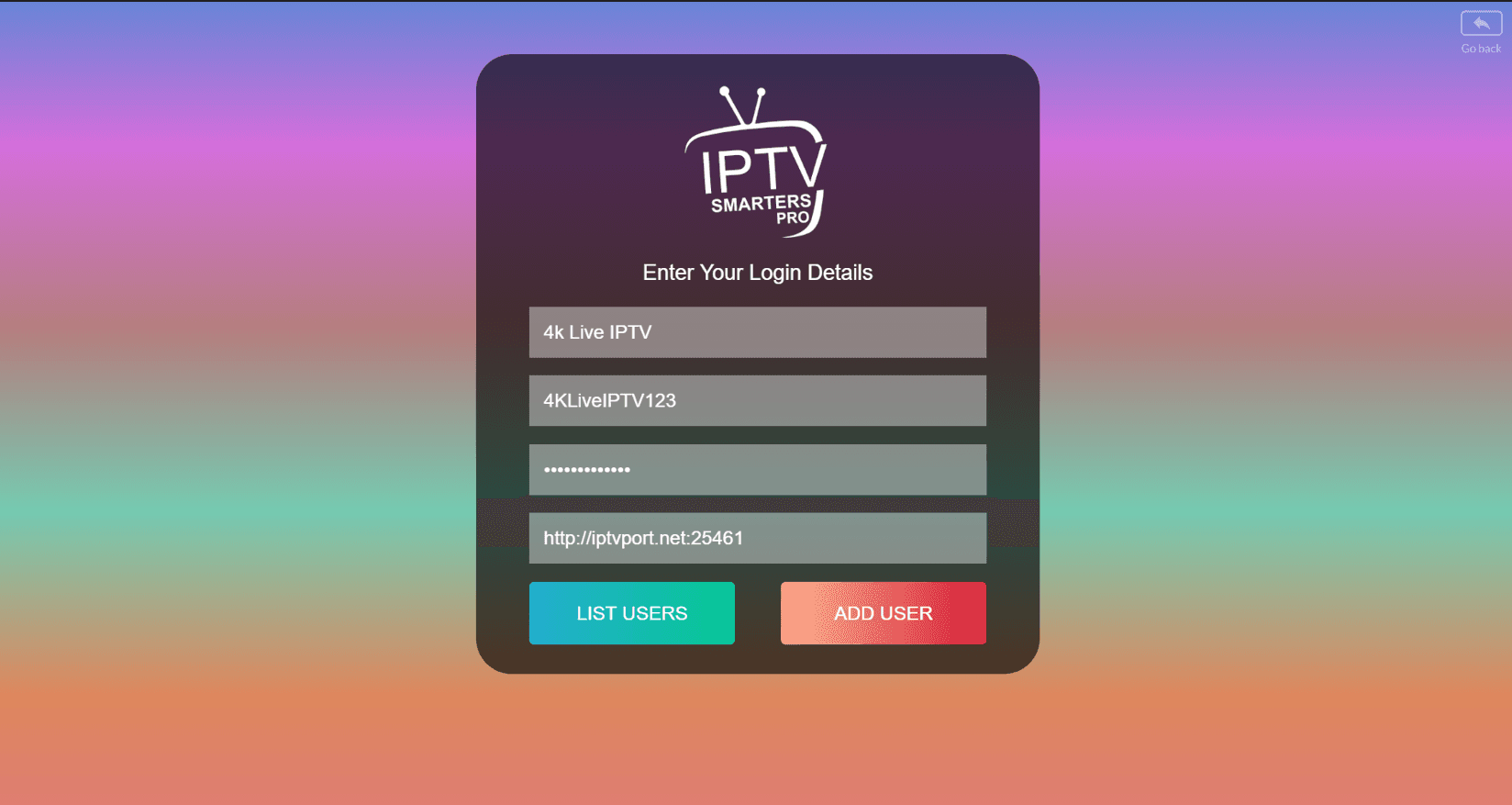
In the first box enter any name you like (for example "4K Live IPTV"). In the second and third boxes enter the Username and Password we sent you via WhatsApp, Email or Chat. Enter the Server URL in the final box. Tap "ADD USER" to continue.
Wait a few seconds
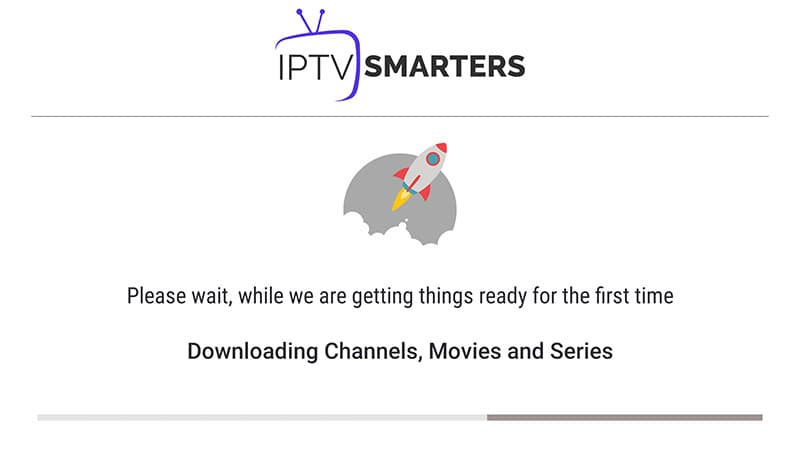
The app will connect to the server and load your channel list. This usually takes 5–15 seconds.
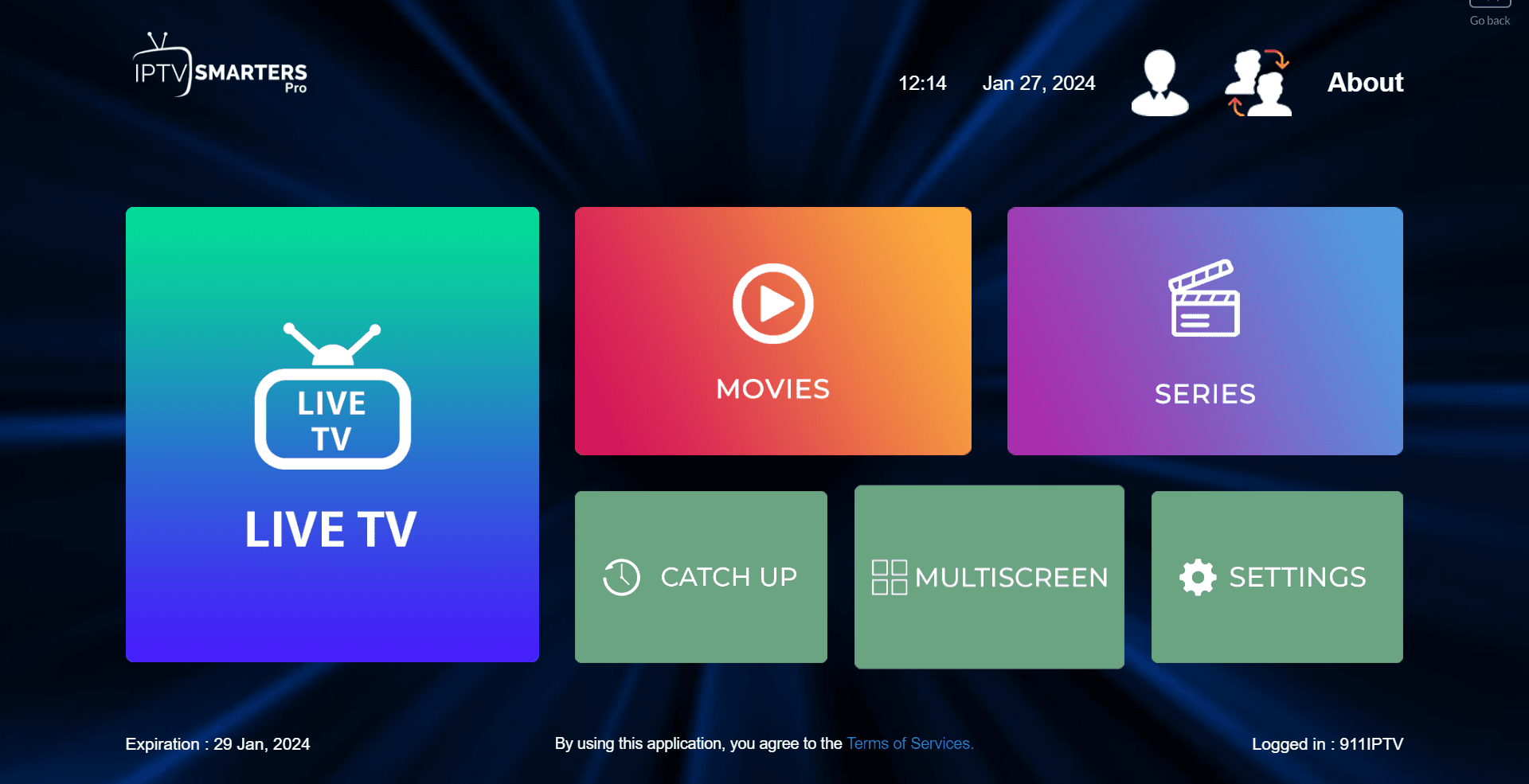
Tap the Live TV icon
Once loading is complete, tap the "Live TV" icon on the home screen.
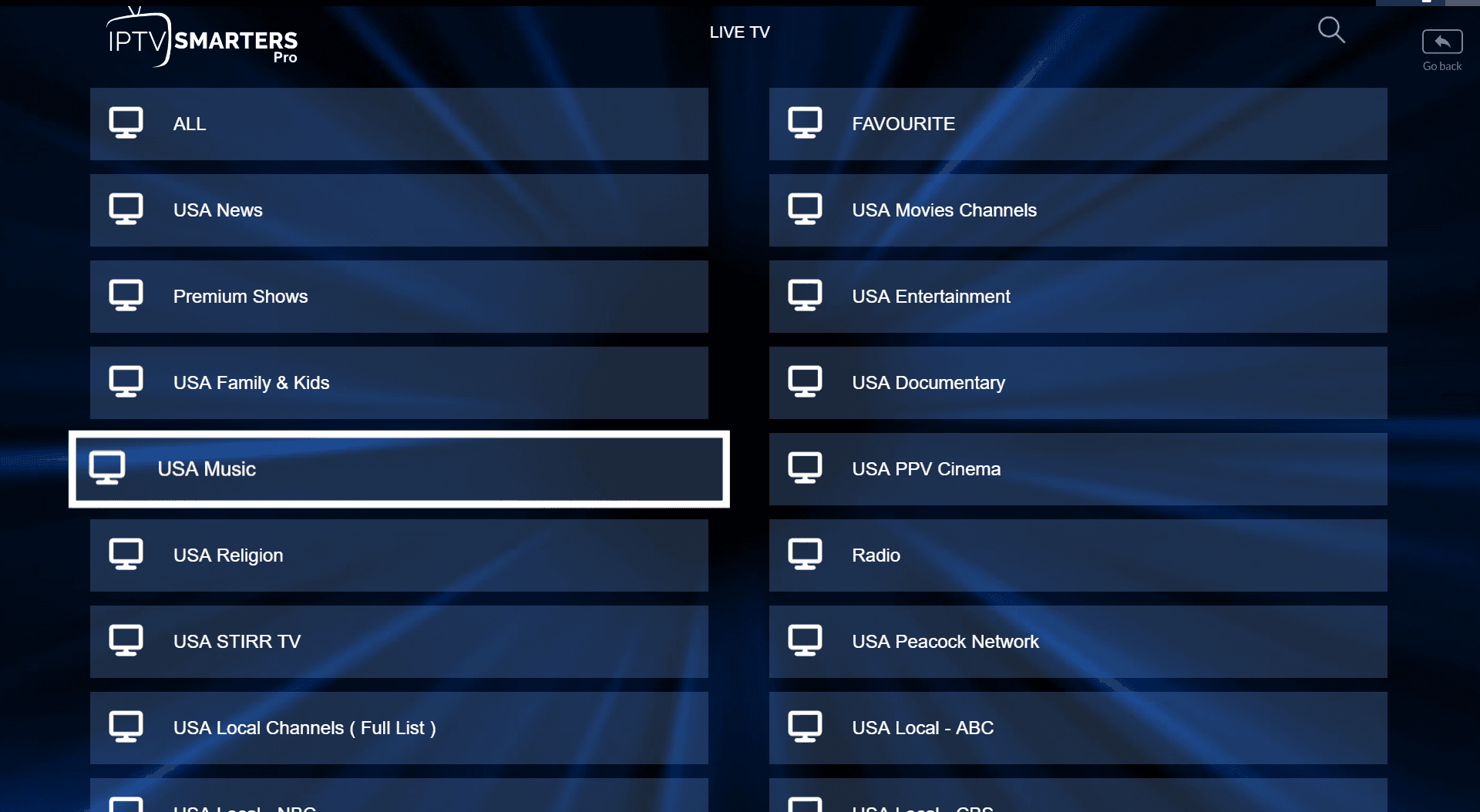
Select a channel group
Browse the channel groups and tap the one you want to watch.
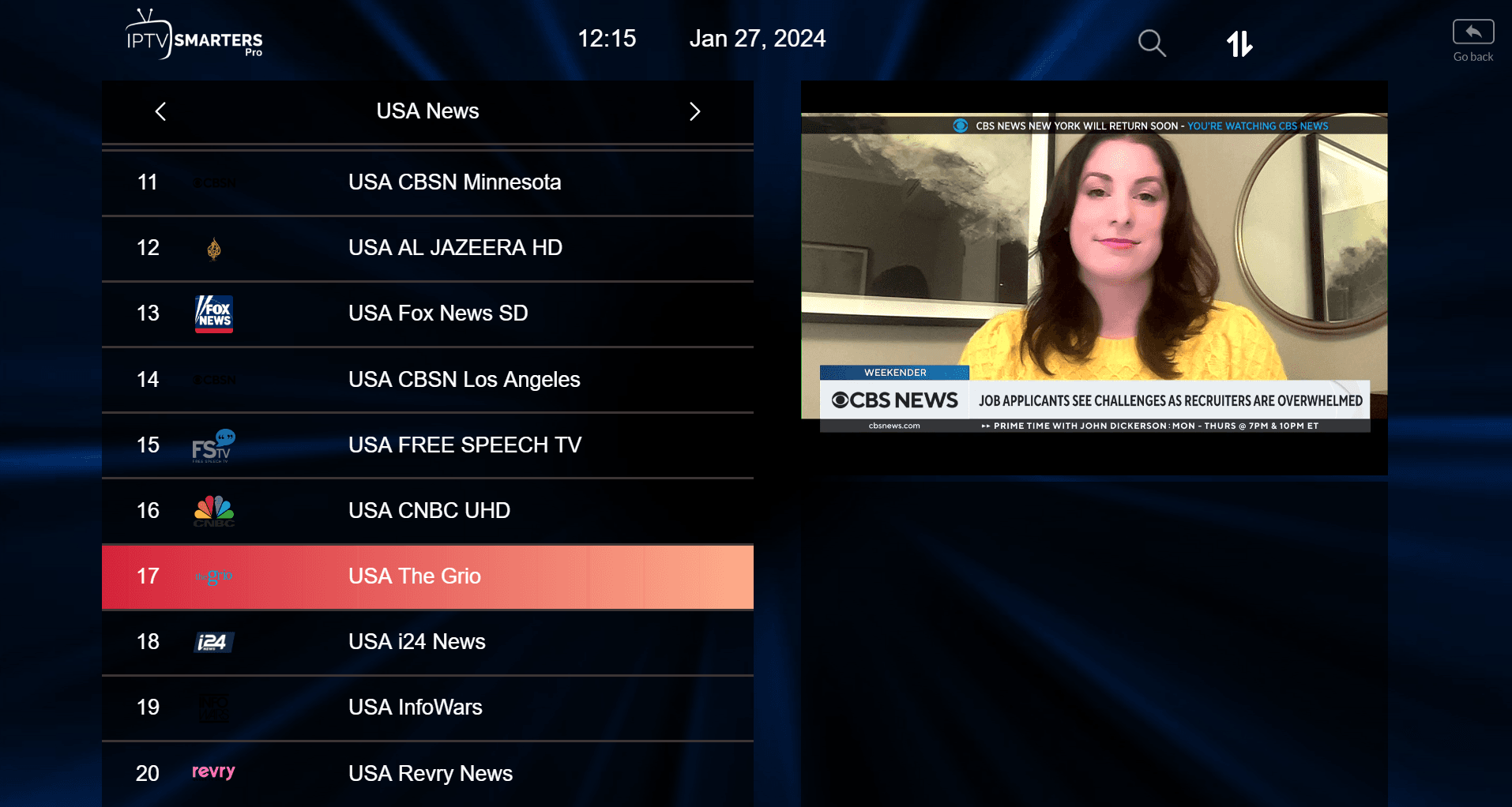
Pick a channel and go full screen
Tap the channel name to start playback, then double-tap the small preview screen to switch to full screen.
Setup via Playlist
Open "Add user" and choose Playlist
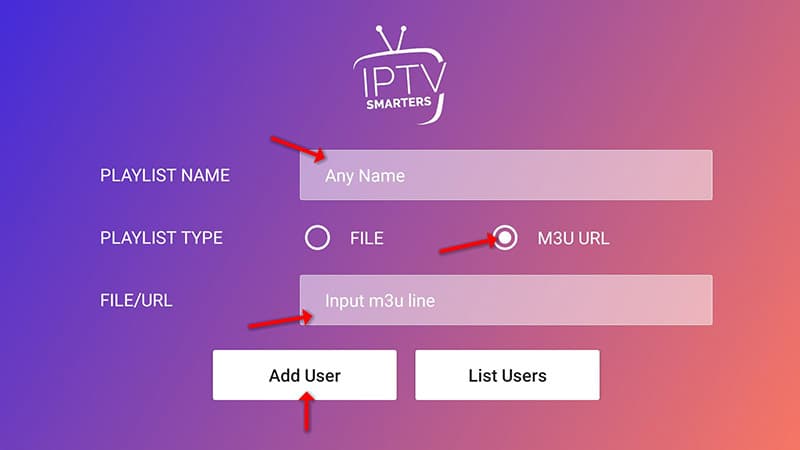
Tap "Add user", then select "Login with Playlist". Use this method if you have an M3U URL instead of Xtream Codes credentials.
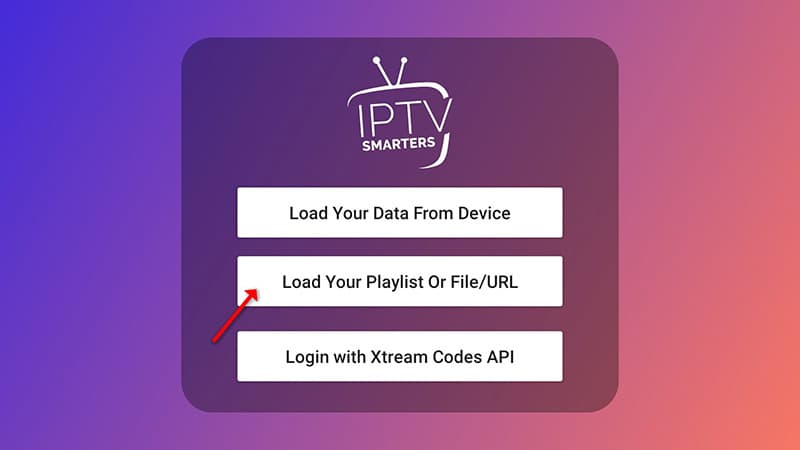
Enter your playlist details
In the first box enter any name you like (for example "IPTV Playlist"). Select "M3U URL" and paste the M3U URL we sent you via WhatsApp, Email or Chat.
Open Live TV and start watching
Tap the "Live TV" icon, select your channel group, then tap the channel you want to watch.
Screenshots are captured against the current app release and re-shot with every major update.
Troubleshooting
Common issues on this device and the fixes that resolve them.
IPTV Smarters won't install — "Apps from Unknown Sources" blocked
Go to Settings → My Fire TV → Developer Options and make sure Apps from Unknown Sources is set to ON. If the option is missing, check that your Fire OS is up to date.
Video buffers or drops quality
Move the Firestick within line of sight of your router, or use a Fire TV Ethernet adapter for a wired connection. Aim for at least 10 Mbps for HD and 25 Mbps for 4K.
"Invalid credentials" error
Copy your username and password directly from the welcome message we sent. Watch for similar-looking characters (0/O, 1/l). If it still fails, contact support.
The picture is stretched or has black bars
Open Settings → Display & Sounds → Display and set the resolution to Auto so the Firestick matches your TV's native resolution.
Still stuck? Contact support — the form will be pre-filled with your device so we can help without back-and-forth. See more fixes in the general troubleshooting hub.
Also on Keydole
Same subscription — every device you own.
Ready to start on Amazon Firestick?
Pick a plan and your credentials arrive within seconds — activation is instant, on screen and by email.